
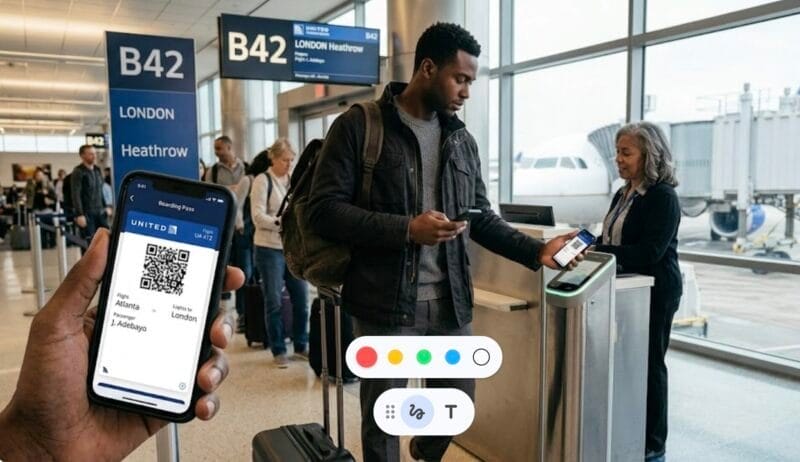
Digital check-in has transformed the airport lobby from a place of long queues to a brief transit point. For most travelers, knowing how to use a mobile boarding pass at the airport is the first step in a frictionless journey. However, the transition from paper to pixel isn’t just about convenience; it is about managing a digital tool that remains tethered to the reliability of your device and the airport’s infrastructure.
The Mechanics of the Scan
A mobile boarding pass is essentially a digital container for your passenger data, typically rendered as a QR code. Unlike standard barcodes, QR codes can be read from any angle, which is why you can place your phone on a scanner without perfect alignment.
When you reach the TSA checkpoint or the boarding gate, the scanner uses an optical sensor to “read” the pixels on your screen. There are two primary ways this data is transmitted:
- Optical Scanning: You place your screen face-down on a glass reader.
- NFC (Near Field Communication): In modern terminals, you simply hold your phone near the reader (similar to using Apple Pay), and the pass “pops up” automatically.
In many major U.S. hubs, you may notice that the TSA officer doesn’t ask to see your mobile pass at all. This is due to Credential Authentication Technology (CAT-2). These machines link your physical or digital ID directly to the secure flight manifest in real-time. If you are using a mobile boarding pass, the system has likely already verified your status before you even reach the podium, though you should still have the QR code ready as a manual backup.
The critical technical requirement is screen brightness. Most airline apps automatically boost your phone’s brightness to 100% when the pass is open because low light prevents the optical sensor from distinguishing the QR code’s patterns. If you are using a screenshot rather than a live app, you must manually maximize your brightness before reaching the front of the line.
Where the Digital Workflow Breaks Down
While the mobile pass is efficient, it introduces a single point of failure: your smartphone. If your battery dies while you are in the security line, or if the airline’s app crashes in a “dead zone” with poor cellular service, you are effectively a traveler without a ticket.
There is also the matter of the TSA PreCheck Touchless ID indicator. For those opted into biometric programs with carriers like United, Delta, or American, a specific icon will appear on your digital pass. Without this digital mark, you cannot enter the biometric lanes, even if you are a PreCheck member. If the icon is missing, a quick refresh of the airline app is usually required to re-sync your ‘opt-in’ status.
To mitigate this, the strategic move is to screenshot the boarding pass or add it to your digital wallet (Apple Wallet or Google Pay). These methods allow you to access the QR code offline, bypassing the need for a stable 5G connection at the gate. Furthermore, digital wallets often bypass the lock screen, allowing you to access the pass with a double-tap of a button rather than fumbling with facial recognition while holding luggage.
The “Plan B” Mentality
Relying on a mobile pass makes sense for domestic travel, but it is not yet a universal solution. For international itineraries involving multiple visa checks or “proof of onward travel” requirements, some gate agents may still require a physical document printed at the kiosk.
I have found that the most seasoned travelers adopt a hybrid approach. They use the mobile pass for speed but keep a physical backup—either a printout or a high-resolution screenshot—tucked away. It isn’t about being cynical toward technology; it is about ensuring that a dead battery or a cracked screen doesn’t turn a 10-minute boarding process into a 30-minute customer service ordeal.
Troubleshooting: Common Technical Issues
If your mobile boarding pass at the airport refuses to scan, the issue is usually one of three things:
- Screen Privacy Protectors: These films narrow the viewing angle of your screen. If you have a “privacy screen,” the overhead scanner may not be able to “see” the QR code even if it looks clear to you. You may need to tilt the phone slightly.
- Auto-Rotate: If your screen flips to landscape mode just as you place it on the scanner, the reader may lose the alignment. Lock your screen orientation before you reach the agent.
- Dirty Screens: Smudges or cracks can distort the QR code’s geometry. A quick wipe of the screen is often the simplest fix for a failed scan.
- The Apple Watch Twist: Scanning from a wearable is convenient but physically awkward. Most gate scanners are designed for phones; to scan a watch, you often have to rotate your wrist 180 degrees, which can lead to ‘partial scans.’ If it doesn’t work on the first try, don’t keep tapping—simply use your phone to avoid holding up the line.
Recommended Accessories to Keep Your Phone Alive While Traveling


Practical Takeaways
- Check Brightness: Manually maximize brightness if using a screenshot.
- Offline Access: Always save the pass to your digital wallet or take a screenshot to avoid app-loading issues.
- Multiple Passengers: While you can swipe through multiple passes on one phone for a family, some international gates require each adult to hold their own device or paper pass.
- International Exceptions: Always check if your destination airport requires a paper “stamp” on your boarding pass, a common requirement in regions like North Africa and parts of Central America.
- Group Logistics: If you are managing boarding passes for a family on one device, stay together. While domestic TSA agents can often swipe through multiple passes, international gate agents frequently require each adult to hold their own device or a paper copy for individual document reconciliation.


I have a question about Step 7. What kind of additional requirements should I be aware of when using a mobile boarding pass?
When using a mobile boarding pass, it’s important to ensure that your device is fully charged before arriving at the airport. Some airlines may also require you to have a specific app version or operating system. Make sure to check your airline’s website or app for any specific requirements.
Can you recommend any other travel-related guides or tips? I’m always looking for ways to make my travel experience smoother.
Certainly! I can recommend guides on packing efficiently, navigating airports, finding the best deals on accommodations, and more. Let me know which areas you’re interested in and I’ll be happy to provide some suggestions!
I recently traveled using a mobile boarding pass and it was so convenient. I didn’t have to worry about printing anything and it saved me a lot of time. Highly recommend!
I followed this guide and it worked perfectly for me! I did make one small adaptation though – instead of saving the mobile boarding pass on my phone, I took a screenshot and saved it as an image. That way, I didn’t have to worry about losing internet connection.
This guide was really helpful! Now I’m wondering if there are any additional features or benefits to using a mobile boarding pass instead of a paper one. Can you provide more information on that?
Absolutely! Using a mobile boarding pass can offer several benefits such as reducing paper waste, faster check-in process, and the ability to easily update or change your seat assignment. It also eliminates the risk of losing a paper ticket.
I recently used a mobile boarding pass for the first time and it was so convenient! No need to print anything or worry about losing a paper ticket. Just had to show my phone at the gate and I was good to go.
Instead of downloading the airline’s mobile app, I used the airline’s website on my phone’s browser to access my reservation and get my mobile boarding pass. Worked just as well!
That’s a great alternative method! Thanks for sharing your experience.
I’ve heard some people say that using a mobile boarding pass can cause delays at security checkpoints. Has anyone experienced this?
I haven’t personally experienced any delays at security checkpoints due to using a mobile boarding pass. However, it’s always a good idea to have your mobile boarding pass easily accessible on your phone to speed up the process.